Learn how to use AI-INCLUSION easily, step by step
A practical and accessible guide designed to help homeless youth use AI-INCLUSION in a simple and independent way. The guide explains step by step how to access the application, create an account and navigate through its different areas and features.
Throughout the guide, users can learn how to set up and update their profile, use the artificial intelligence assistant to find free social resources and services nearby, access practical materials, contact professionals through the chat, use their personal Digital Home space and request support whenever they need it.
The guide includes clear instructions, examples of questions that users can ask the AI assistant, recommendations for obtaining more precise answers and explanations of the different options available in the application. In this way, users can understand not only what AI-INCLUSION offers, but also how to use each of its features in specific situations in their everyday lives.
Language should never be a barrier to accessing support.
The User Guide is available in 12 languages to facilitate access to the application for participants with different linguistic backgrounds.
Download the guide
What will you find in the guide?
Navigate the public area
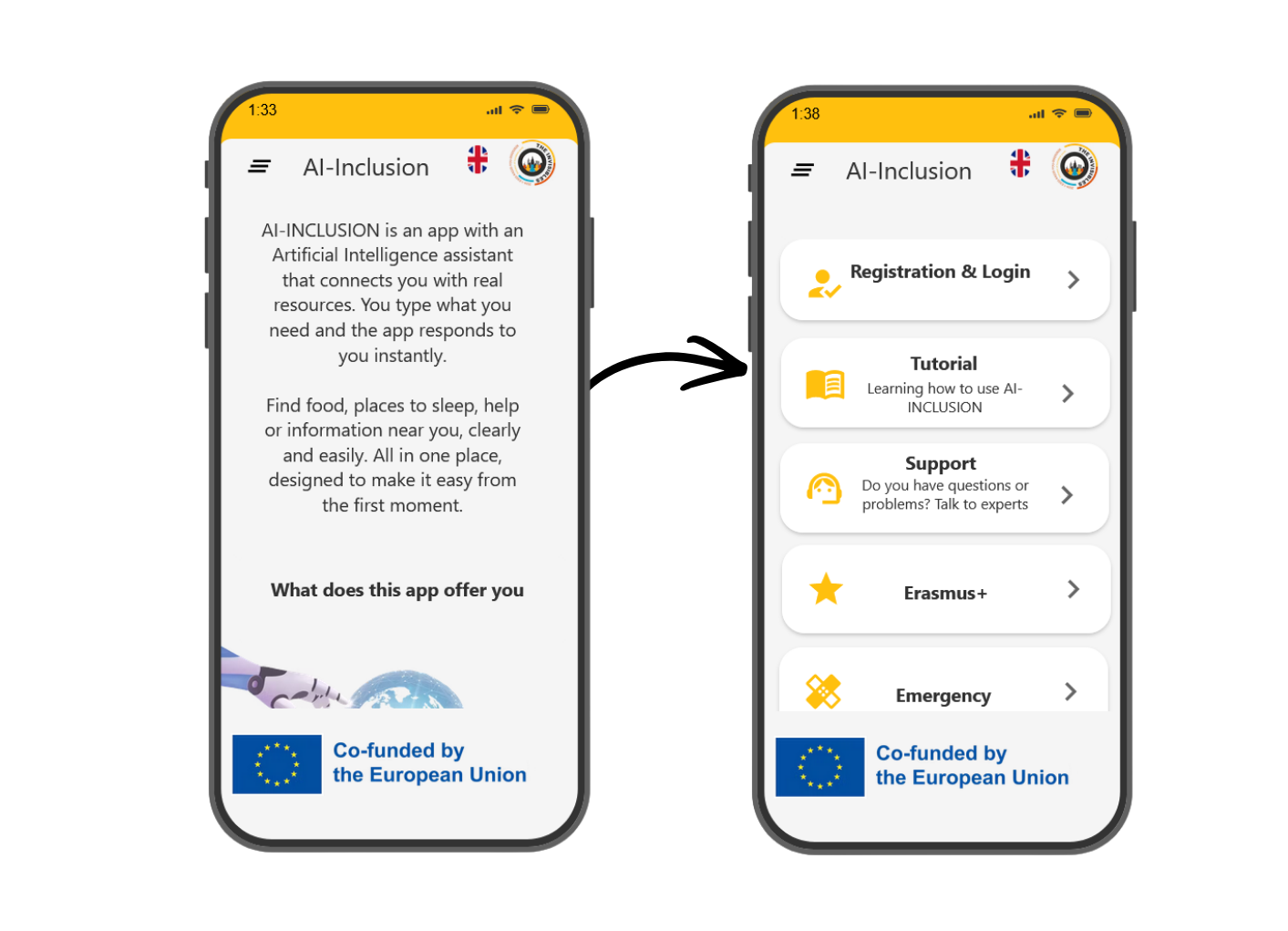
Discover what AI-Inclusion is and access the basic tools without registering. When you enter the app, the first thing you see is the public area.
In this section you will find:
- Information about the app. Discover what the app is and how it can help you.
- Login / Register. Create your account or log in to access all features.
- User guide. Learn step by step how to use the app easily.
- SUPPORT. Submit a request if you need help or have a problem.
- ERASMUS +. Discover the Erasmus Plus program and the opportunities it can offer you.
- EMERGENCIES. Call 112 if you need help or are in danger.
- THE INVISIBLES. Learn about the project that made this app possible.
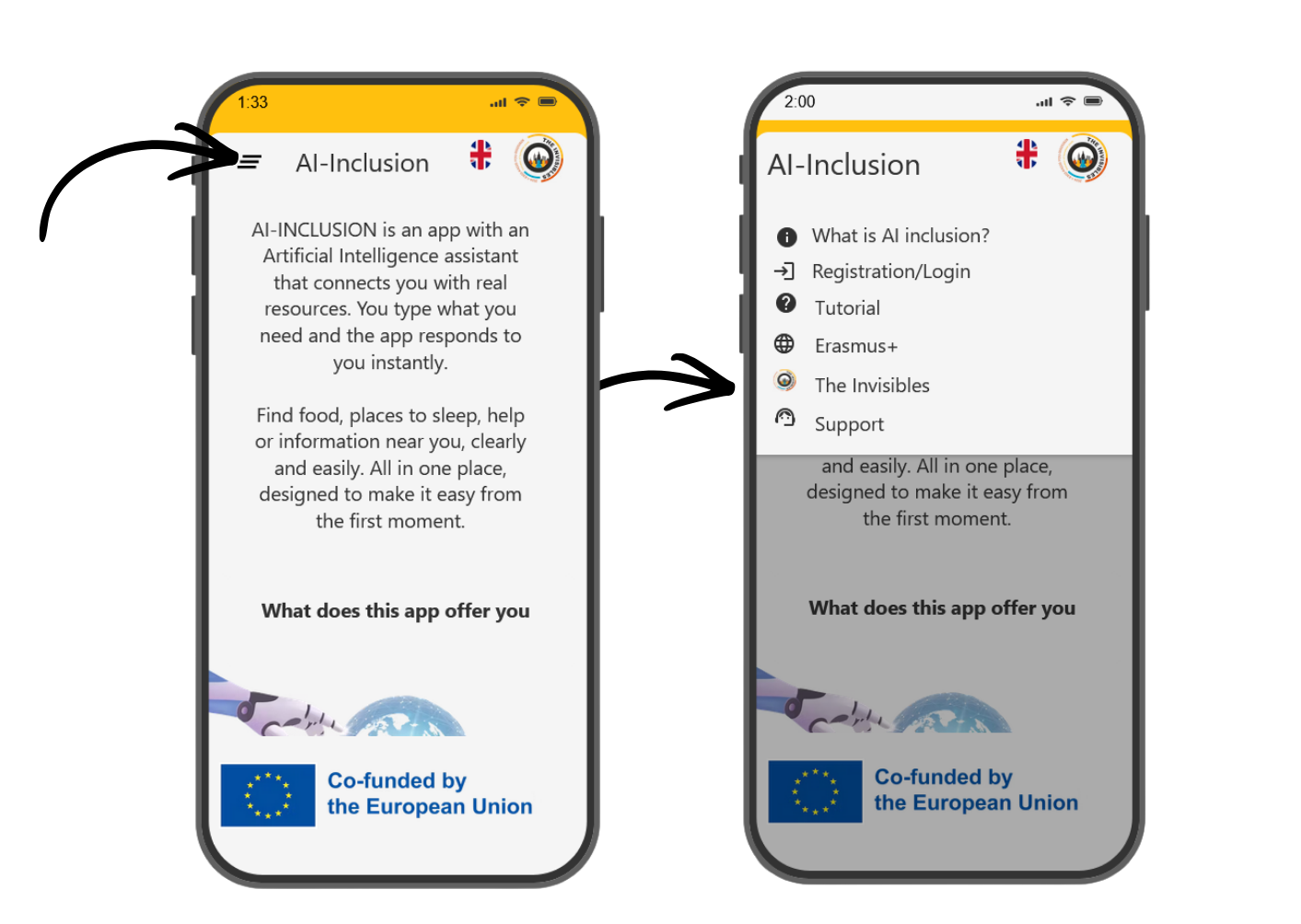
You can access the different sections of the public area in two simple ways:
From the main screen scrolling
From the menu
Navigate the user area
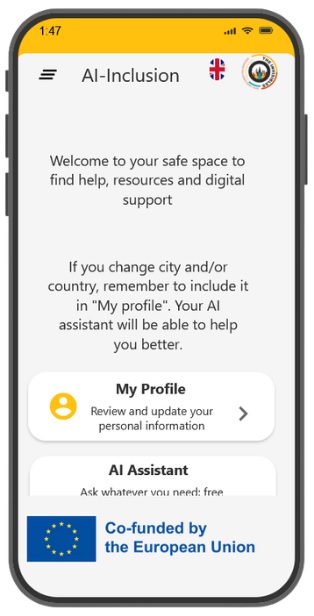
Here you have access to all the app’s main tools for your day-to-day life.
In this section you will find:
- My profile. Manage your personal information and adjust your account.
- MY AI ASSISTANT. Your AI assistant to find free social resources near you.
- Resources. Access resources that will help you face challenges such as job interviews, creating your CV, looking for work, gaining self-confidence…
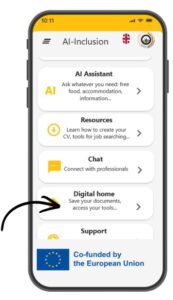
- Digital Home. Log in to your cloud storage to access your files
- CHAT. Speak with professionals depending on your situation or need.
- SUPPORT. Submit a request if you need help or have a problem.
Steps to access the user area
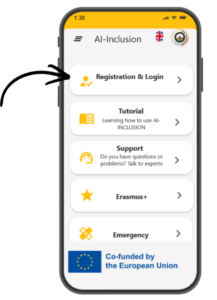
STEP 1. LOG IN/REGISTER
Register
The first step to access the user area is to register (or log in if you have already registered).
To do this, click on “REGISTRATION/LOGIN” in the public area.
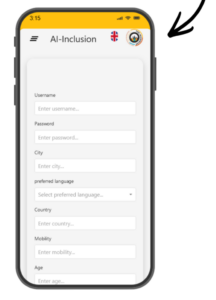
Fill in all the fields
These fields have been chosen so that the AI assistant can help you better.
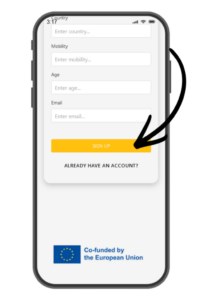
Sign up
To complete the process, click on “sign up”
STEP 2. NAVIGATE THE MAIN PAGE OF THE USER AREA
Once you have registered the user area, you can access the user area spaces in two simple ways:
From the main page scrolling down
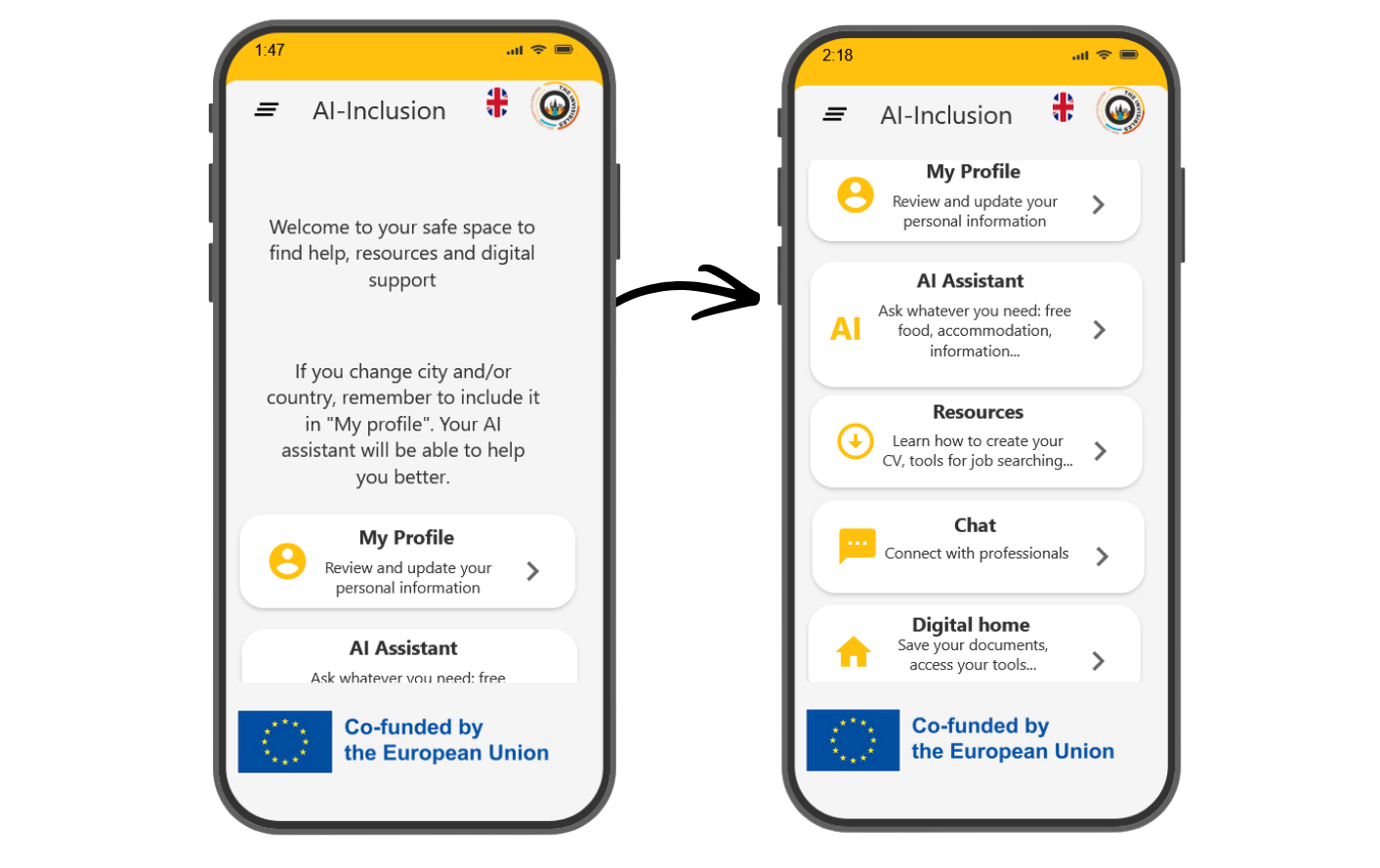
From the menu
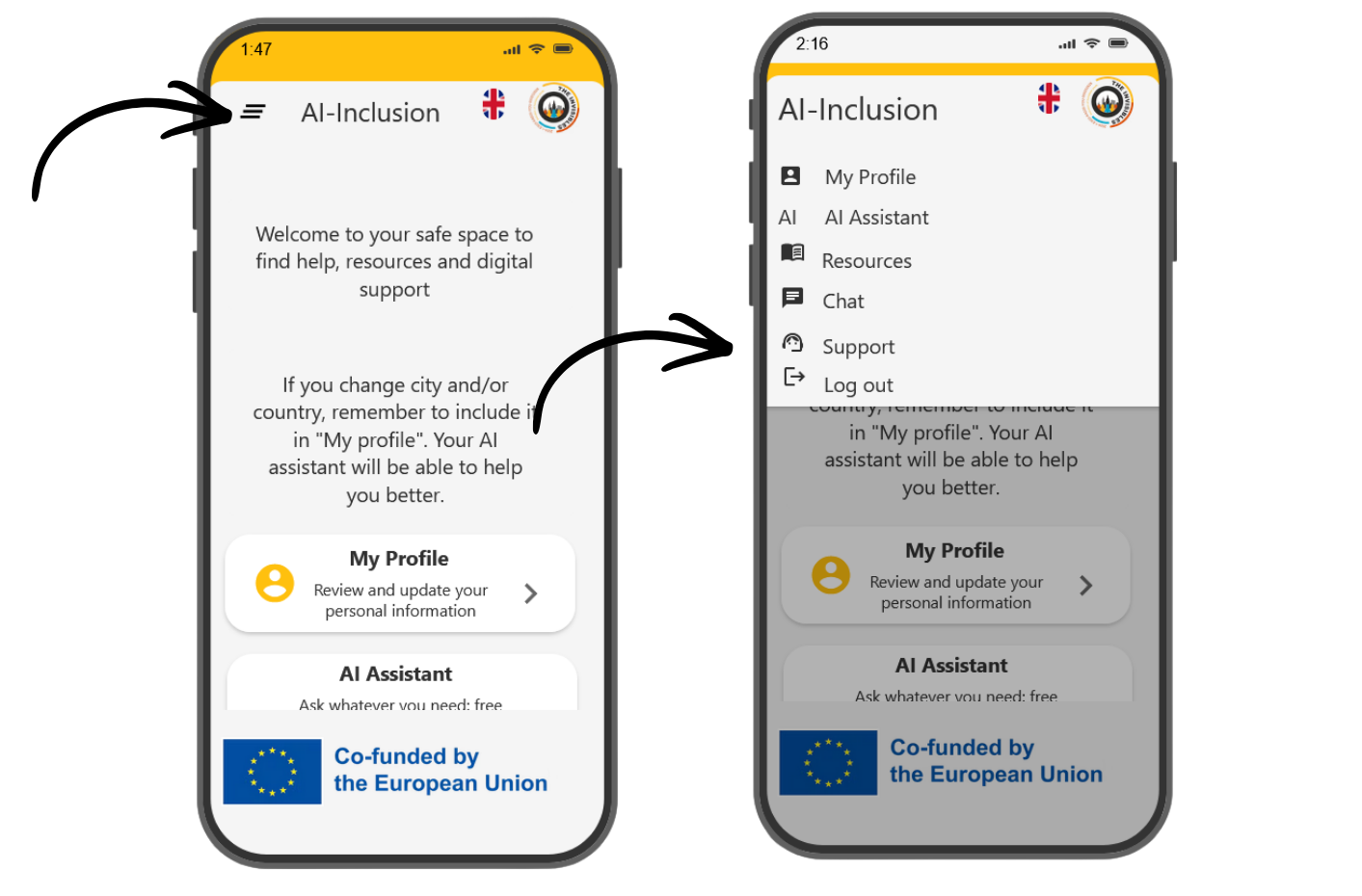
How to access the user area sections
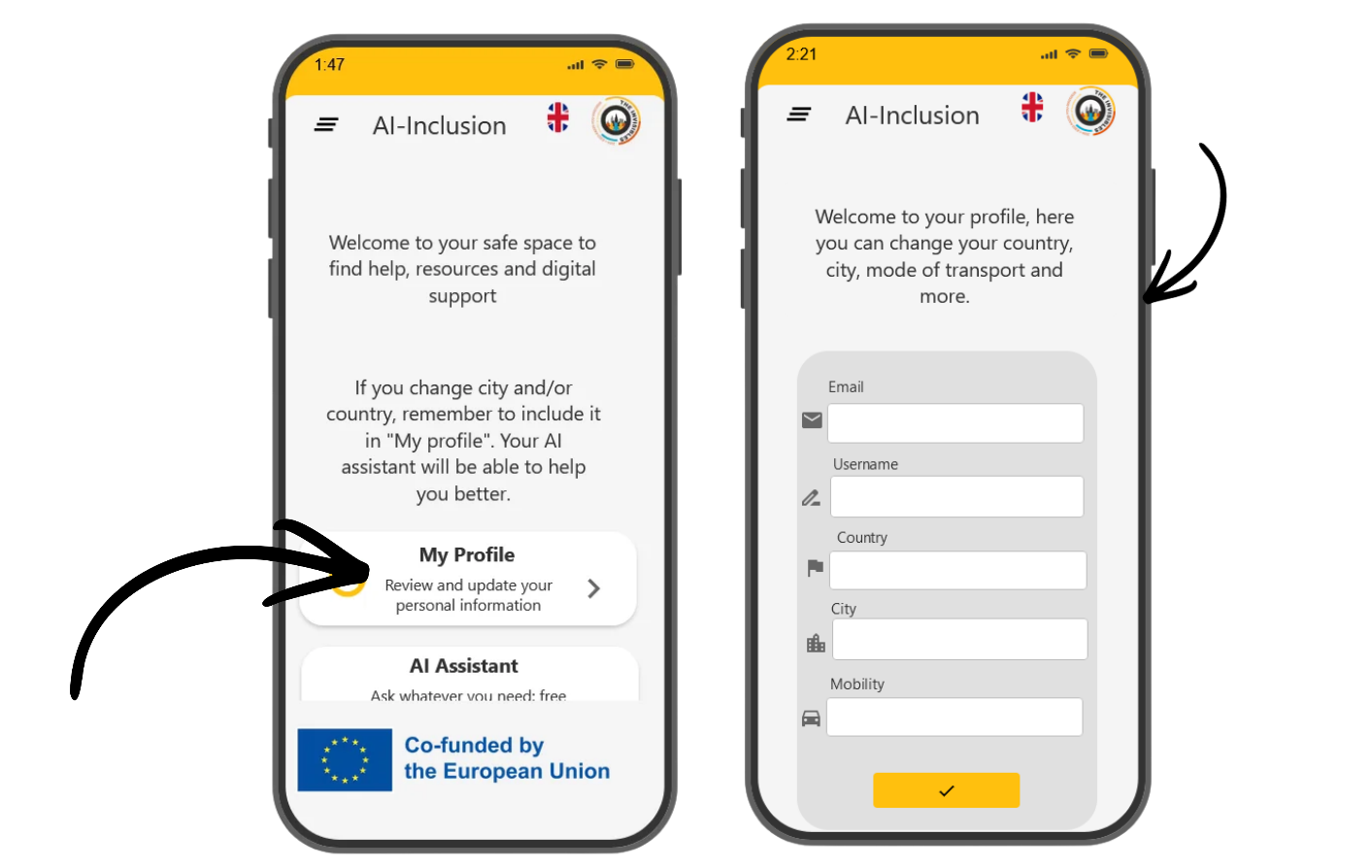
My profile
In your profile you will find your personal information within the app. Here you can view and edit:
- User name
- Country
- City. It is very important to select the city you are currently in. If you move to a different city, remember to update this information in your profile. This will allow My AI Assistant to offer you help and resources more tailored to your location.
- Mobility. Indicate how you can get around: on foot, by bicycle, public transport, or other options.
Steps to access:
- Access your profile. The first step to access your profile is by clicking the button on the main page of your user area or from the menu.
- Welcome to your profile. From here you can see all your information and change whatever you need.
My AI assistant
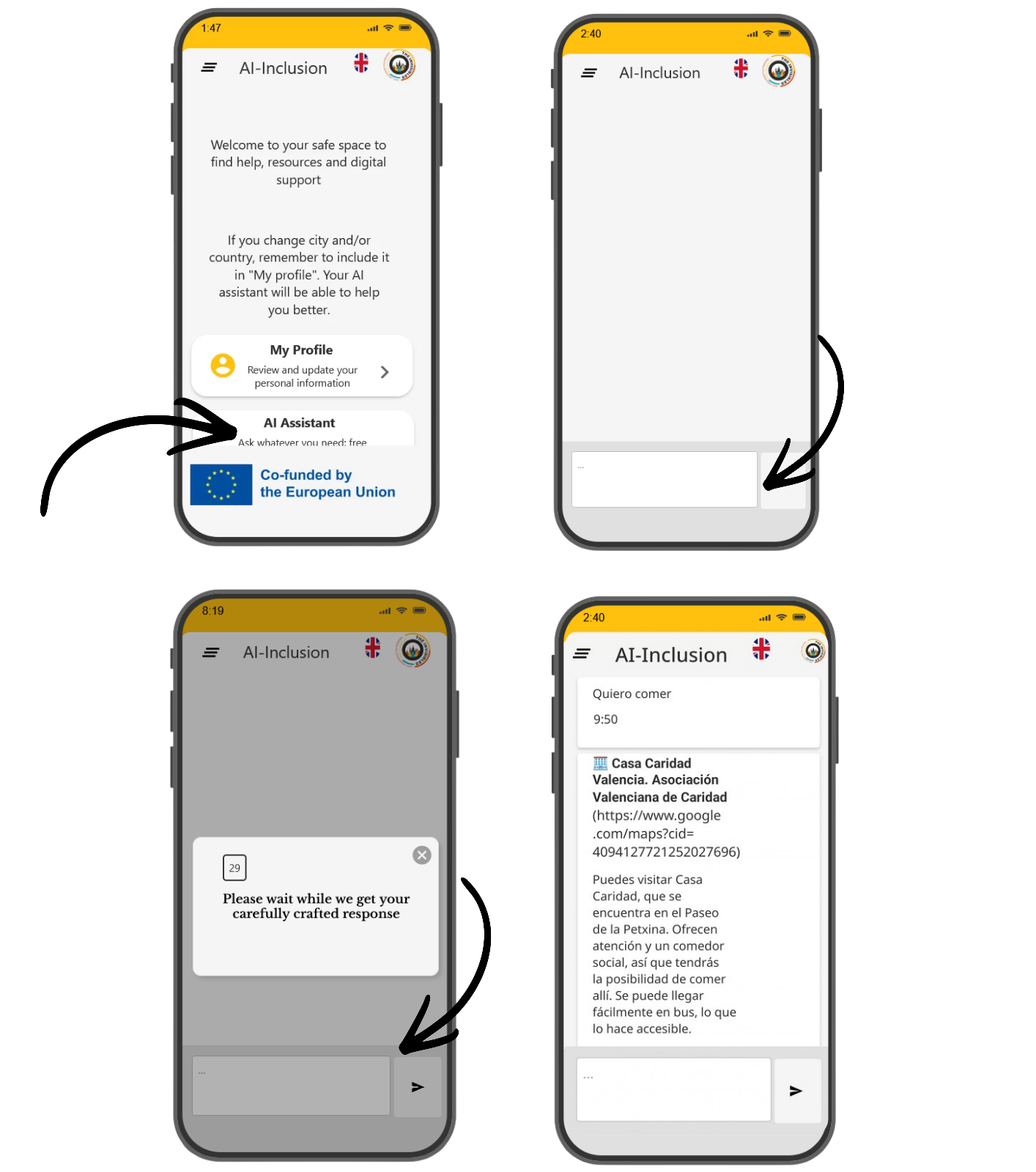
It’s your personal assistant for finding free social resources near you. You can ask it about soup kitchens, shelters, health centers, legal advice, training courses, clothing, and much more. It works in multiple languages and remembers your conversation to give you increasingly helpful answers.
STEPS TO USE IT
Access your AI assistant.
The first step to access the AI assistant is by clicking the button on the main page of your user area or from the menu.
Write what you need.
At the bottom, write the message you want to send. The following pages of this guide offer tips and advice on how to communicate with them.
Receive your response.
You’ll see a 30-second countdown while the AI analyzes your request to offer you free resources tailored to you.
Resources
Access practical materials that you can use at your own pace to improve your skills and prepare for new challenges.
You can consult them whenever you want and advance step by step, according to your needs.
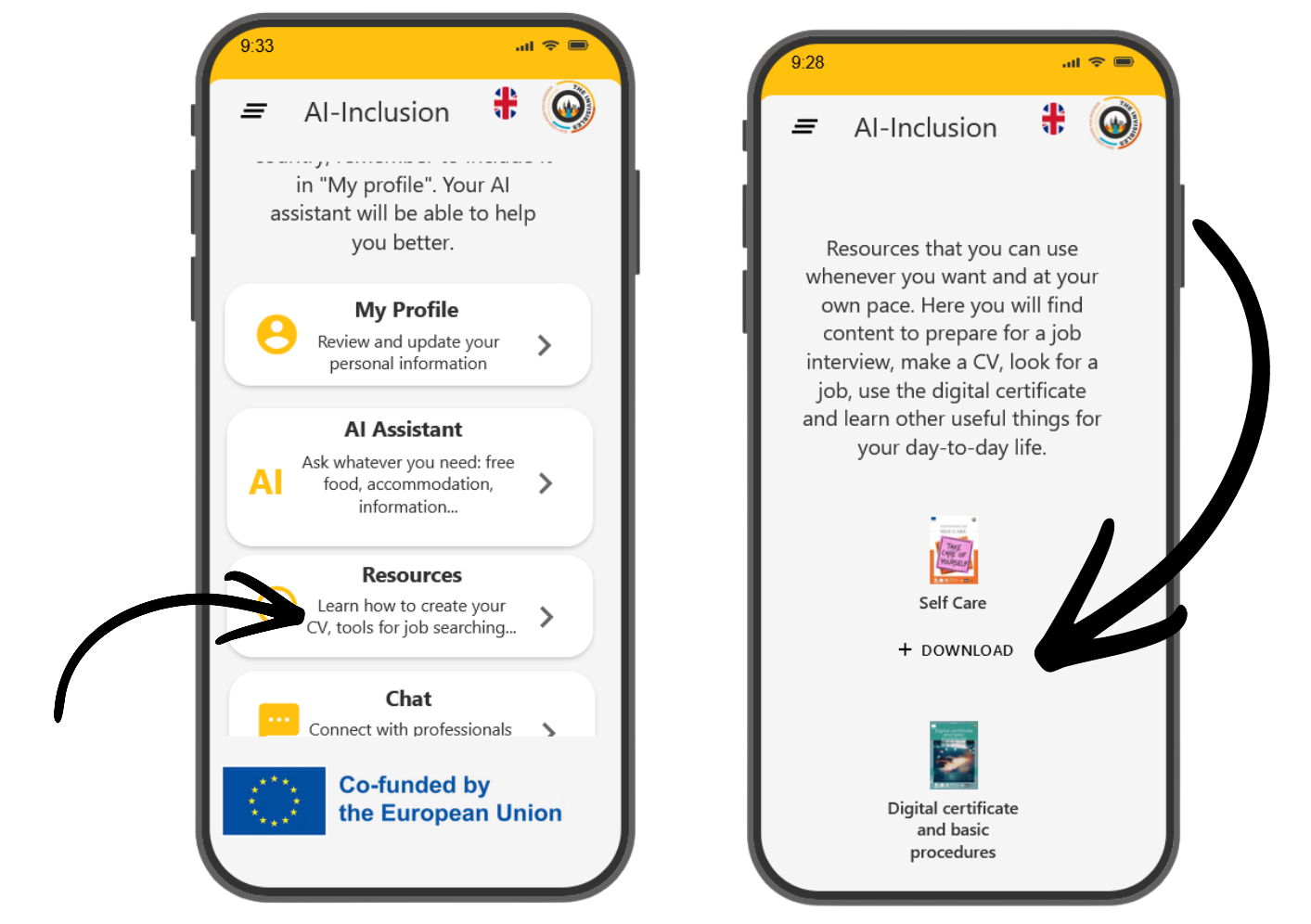
STEPS TO ACCESS RESOURCES
Access the resources
The first step to access your profile is by clicking the button on the main page of your user area or from the menu.
Download the resource you need
Click on “+ DOWNLOAD” to download the resource you want in PDF format.
Chat
The chat allows you to get in direct contact with professionals who can help you according to your needs.
You will be able to speak with:
- NGO members
- Specialized associations
- App technical support
This chat is designed to provide you with secure support. Therefore, you will only be able to communicate with professionals and not with other users.
STEPS TO ACCESS THE CHAT
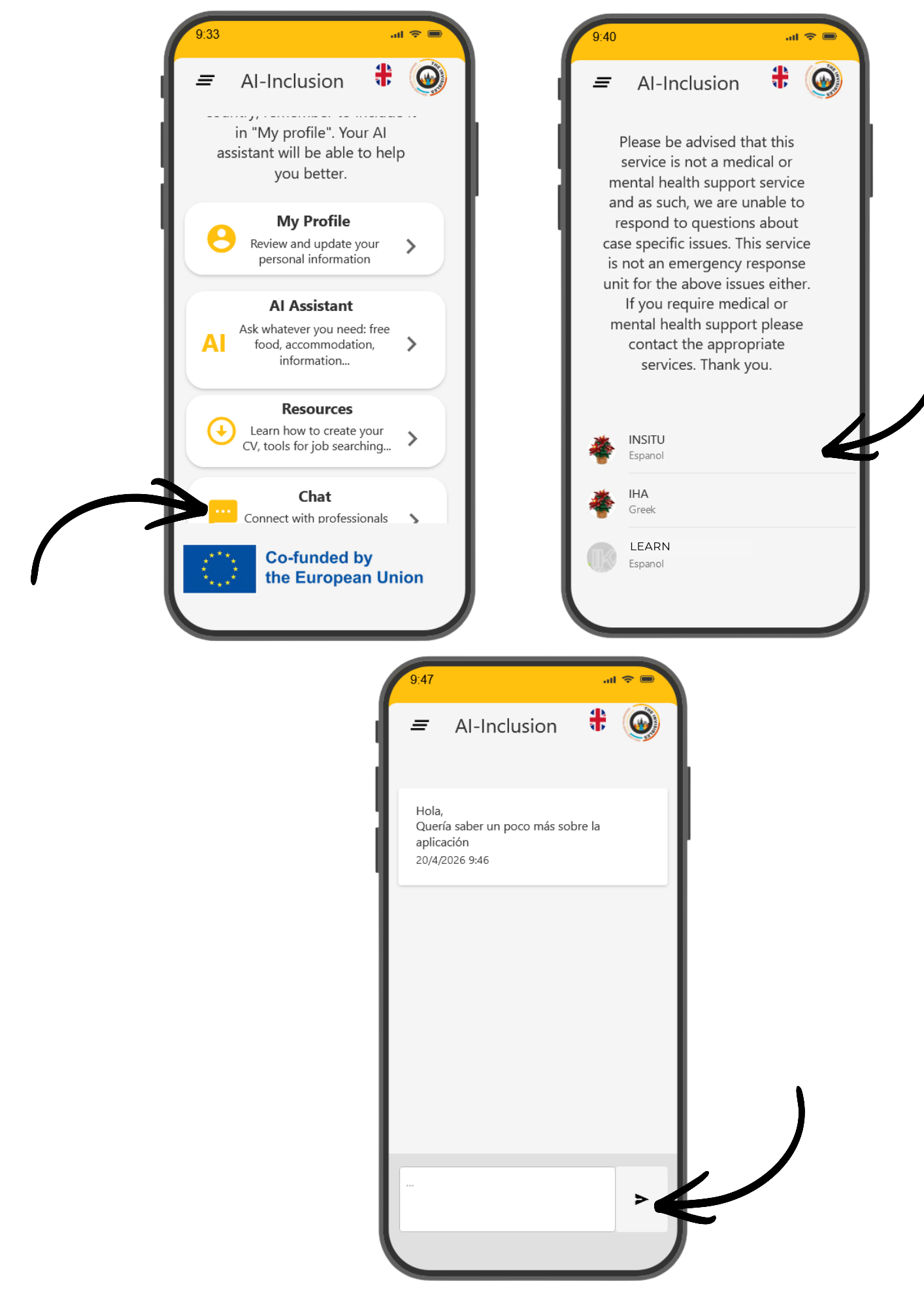
Access the chat. The first step to access the chat is by clicking the button on the main page of your user area or from the menu.
Who do you want to talk to? Select the person you want to talk to. This chat has been created so you can talk to members of the NGO Intereuropean Human Aid Association (Greece), In-Situ Social CLM (Spain), or Ikasia to receive technical support in using the application.
He begins to speak. Once you have selected who to talk to, the chat will open so you can send them all the messages you need. Write a message at the bottom and click the arrow to send. The team at the organization you’re going to talk to will receive a notification and will respond as soon as possible.
This service does not offer medical or mental health support, so we cannot answer questions about specific cases. It is not an emergency service either. If you need urgent help or medical or mental health support, contact the relevant services.
Digital home
Digital Home is your personal space in the cloud, where you can securely store and organize your documents.
From this section you can directly access your personal storage to save important information such as:
- CV and personal documents
- Resources downloaded from the app
- Important information for your daily life
- Privacy and security
To ensure your privacy and the security of your data, Digital Home redirects you to your personal space in the cloud outside of the app.
This way, you maintain total control over your information and decide what to save and how to organize it.
You can access your Digital Home whenever you need it and from any device.
Support
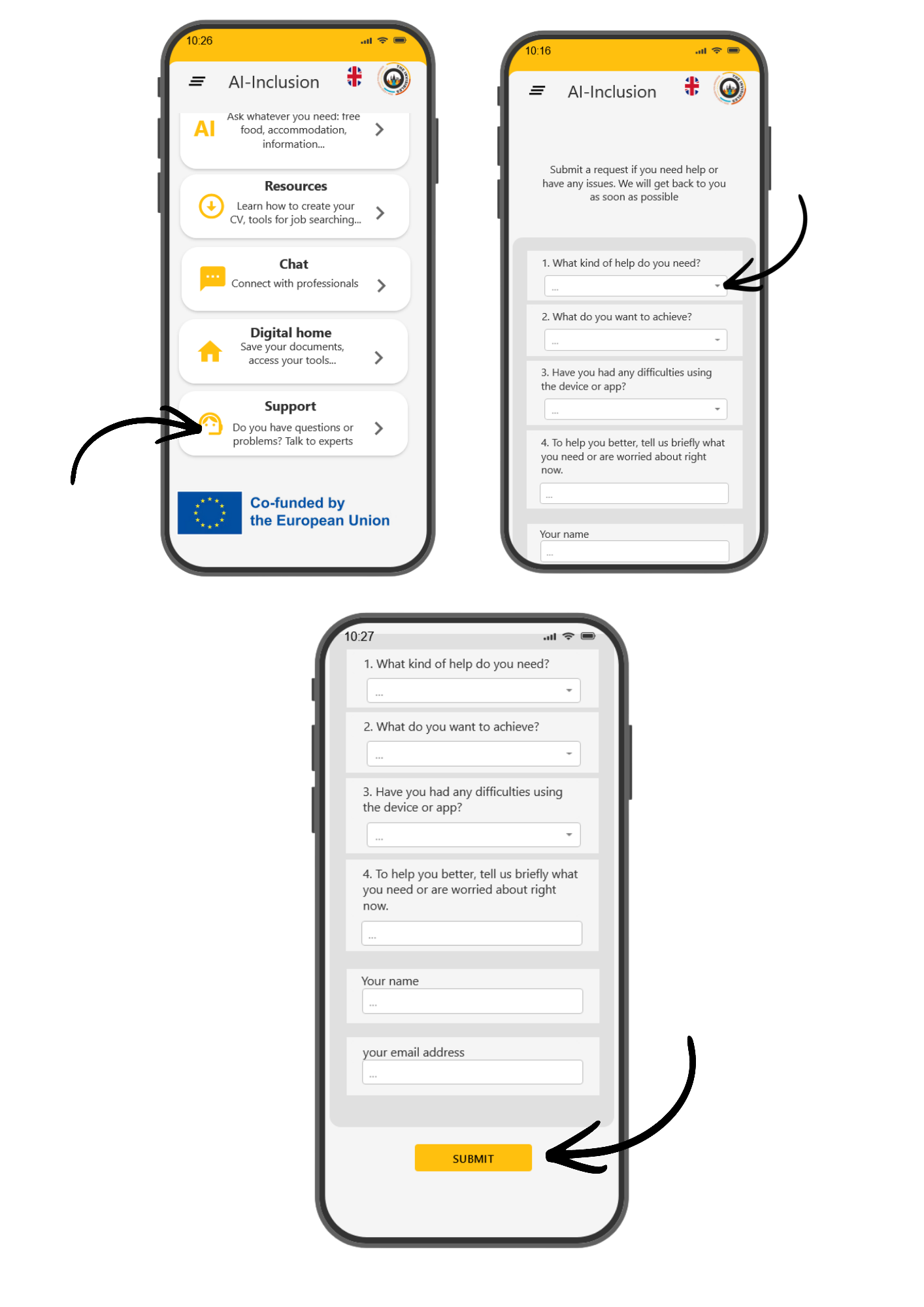
The “SUPPORT” section allows you to easily request help directly from the app.
Through this form, you can request support to use the app.
Once you complete the form, the team will review your request and get back to you as soon as possible.
What can you use Support for?
- You can request help for:
- Get answers to your questions about using the app
- Get support with your device
- Get guidance on social services
- Talk to an expert
- Receive personalized guidance
STEPS TO ACCESS
Access “Support”
The first step to access is by clicking the button on the main page of your user area or from the menu.
Fill out the form
Fill in all the fields on the form.
Submit the form
Click on “submit” and you will receive a response as soon as possible.